Kestrel User Guide
The complete how-to for setting up and running a Kestrel device — first boot, getting online, the dashboard, capturing, plugins, the learning agent, updates, a command reference, and troubleshooting.
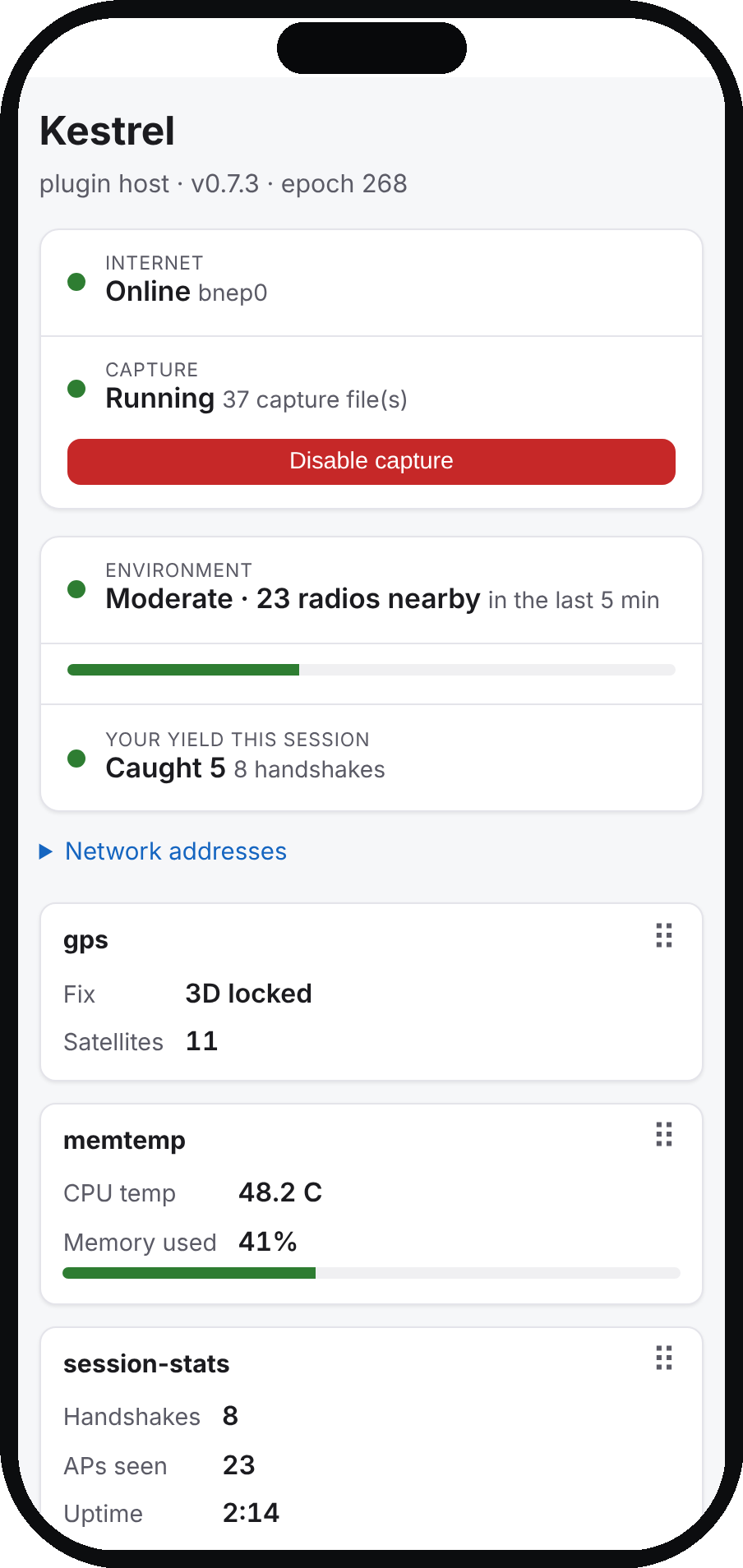
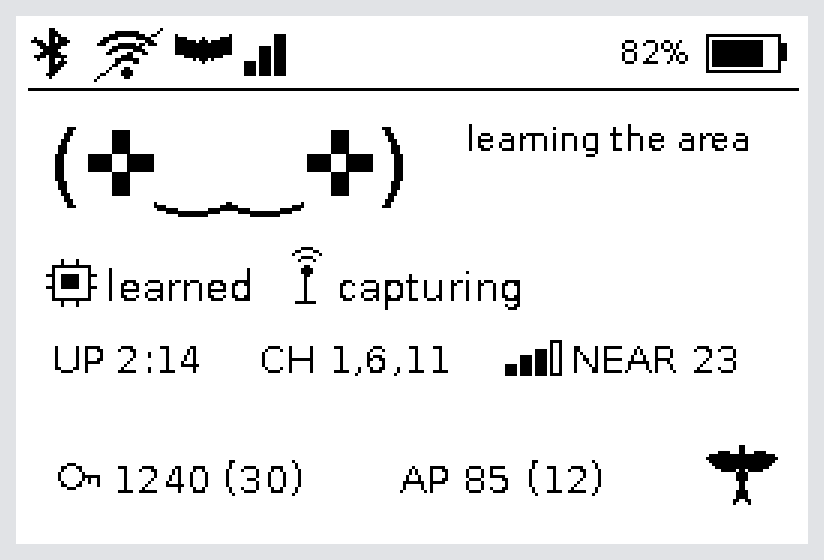
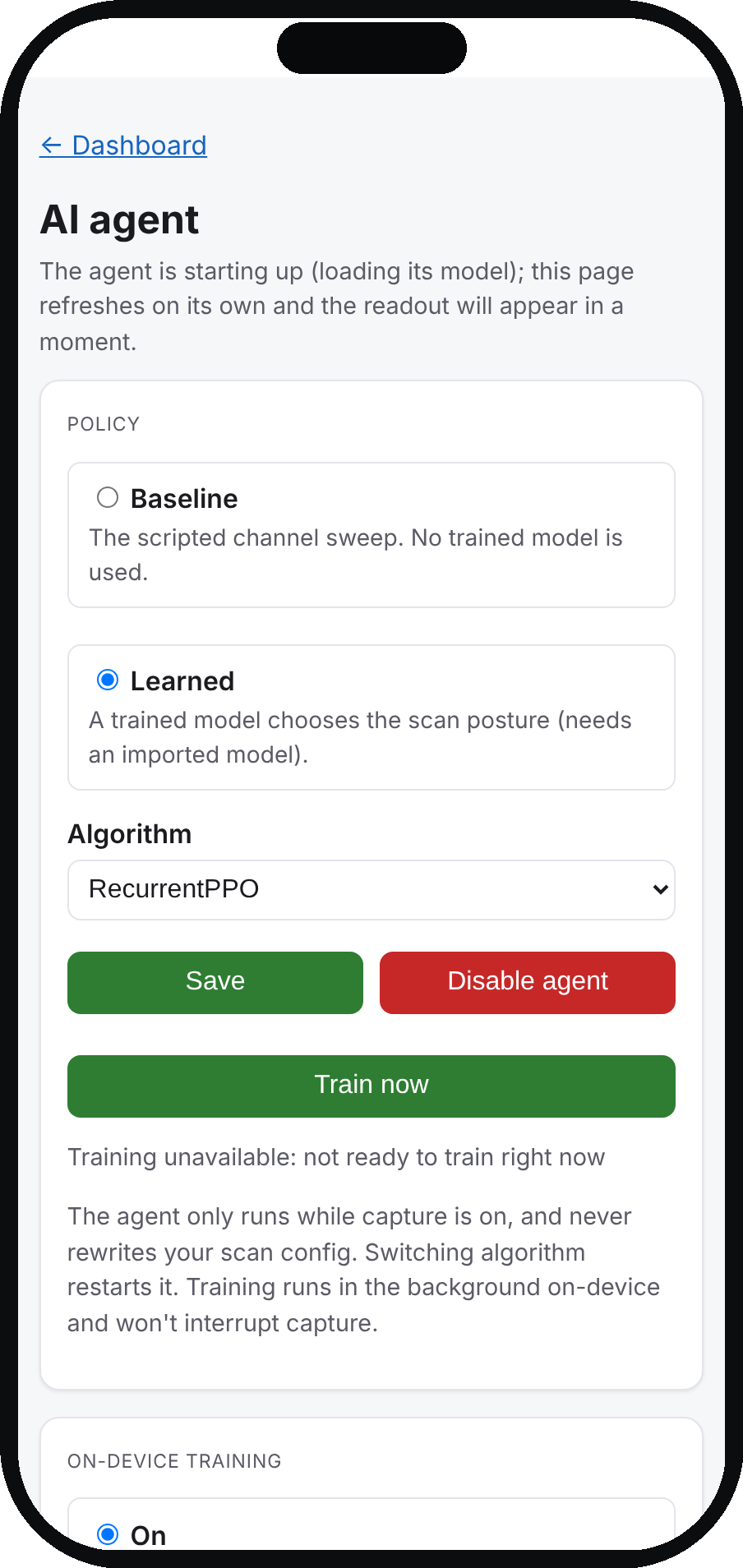
Kestrel at a glance: the phone dashboard, the e-ink face, and the learning agent.
Contents
- First boot and logging in
- Getting online
- The web dashboard
- Capturing handshakes
- Plugins
- The learning capture agent
- Keeping the device updated
- Command reference
- Troubleshooting
- Learning algorithms, in depth
Kestrel is a headless Wi-Fi handshake-capture device. You reach it over a management link (a Bluetooth phone tether or your own Wi-Fi), and you drive almost everything from the device's built-in web dashboard: enabling and configuring plugins, turning capture on and off, running the learning agent, rebooting and shutting down, backing up and applying updates all happen right there in a browser. The command line (sudo kestrel ...) is the full-power equivalent: it does everything the dashboard does and also the handful of things the dashboard cannot, such as first boot and SSH, adding a Wi-Fi network, setting the web login mode, and capture tuning and housekeeping. Capture runs on a separate USB Wi-Fi dongle, so management and capture never contend. This guide walks the whole journey: first boot, getting online, the dashboard, capturing, plugins, the learning agent, updates, a command summary, and troubleshooting.
Everything here is configured through two files on the device, but you rarely edit them by hand: /etc/kestrel/config.toml (capture, web, plugins, the agent) and /etc/default/kestrel (low-level network plumbing). Prefer the web dashboard, which validates changes and edits a single key at a time; the CLI is the same-strength alternative and reaches the few settings the dashboard does not. The dashboard controls need the dashboard login on ([web] auth, on by default), which the sections below point out where it matters.
First boot and logging in
The sturdiest first boot stages the card before you power it on, so the device comes up already on your Wi-Fi and already protecting your own networks, and you can confirm the dashboard before you ever open a shell. The one step with no web form is changing the password, so that is the only terminal task here.
Stage the card before first boot (no SSH)
On the boot (FAT) partition of the freshly flashed card, drop two small text files. The device applies each on first boot and then deletes it, so nothing sensitive lingers on the card:
kestrel-wifi.txt— the management Wi-Fi to join, withssid=andpsk=lines (optionalhidden=yes,country=GB,band=5). The device creates the Wi-Fi profile and removes the file. See Adding a Wi-Fi network for the full set of options.kestrel-whitelist.txt— the networks capture must never attack, one SSID or MAC per line. The device merges them into the whitelist and removes the file, so your own networks are protected the first time you turn capture on. See The capture whitelist for more.
Staging both means the device boots straight onto your Wi-Fi with your own networks already protected, no shell required. If you have no Wi-Fi to join, skip the Wi-Fi file and pair a phone instead (see Pairing a phone over Bluetooth).
Log into the dashboard first
The device ships with a documented default login so you can get in the first time:
- username:
pi - password:
raspberry
Once the device is up on your staged Wi-Fi, open the dashboard over the management link in a browser:
http://kestrel.local:8080/
Log in with pi / raspberry. By default the dashboard authenticates against the device account ([web] auth = system), so this is the same login you use from then on. If kestrel.local does not resolve (your network may not do mDNS), find the device's IP in your router's client list and use http://<device-ip>:8080/. Being able to log in is the quickest confirmation that the device booted, joined your Wi-Fi, and is reachable.
Then change the password
The default login is public, so rotate it before you use the device for anything real. This is the one first-boot step with no web form, so do it from a shell. SSH is enabled out of the box:
ssh pi@kestrel.local        # default hostname is "kestrel"
# or, if .local names don't resolve, use the device's IP:
ssh pi@<device-ip>
Answer yes to the first-connection host-key prompt, enter raspberry, then:
passwd
Because the dashboard logs in with this same device account, changing the Pi password changes the dashboard login at the same time — there is no separate web password stored anywhere, and the two can never drift apart. That is why you confirm the default dashboard login first and change the password after: your next dashboard login simply uses the new password.
For a guided, menu-driven setup instead, run sudo kestrel setup. Other first-run settings are optional: sudo raspi-config sets the hostname (System Options) and toggles SSH (Interface Options).
Getting online
The device has two built-in ways to reach a network for management and internet. Both use the Pi's built-in radios, never the USB capture dongle, and both can be up at once.
- Wi-Fi station: the Pi's built-in Wi-Fi joins a network you add. It is bound to the built-in chip's driver, so it can never land on the capture dongle even if interface numbers change.
- Bluetooth PAN (phone tether): pair your phone once and the device uses the phone's connection. This is the primary path for a device with no Ethernet.
The dashboard's Status shows at a glance whether the device is online. For the full Bluetooth-and-Wi-Fi breakdown and IPs, use the terminal:
sudo kestrel network status
A note on what "online" means: the dashboard shows an Internet row. A tethering phone sometimes carries traffic over IPv6 while advertising only a link-local DNS server that Linux cannot use, so the link works but name lookups fail and the dashboard reads "offline." The device works around this by applying a routable fallback DNS to the PAN link (BT_PAN_FALLBACK_DNS in /etc/default/kestrel, a public IPv6 resolver by default). Blank that setting and reboot if you would rather use only the DNS your phone hands out.
Adding a Wi-Fi network
There is no web form for a Wi-Fi station network, so adding or changing one is a terminal task. From the device:
sudo kestrel network wifi --ssid "YOUR-WIFI" --psk "YOUR-PASSWORD"
Useful flags:
--hiddenfor a network that does not broadcast its name.--country GBto set the two-letter Wi-Fi regulatory country.--band 2.4|5|anyto choose the band. The default is 2.4 GHz because it works on every board (the Pi Zero 2 W is 2.4 GHz only) and some routers refused 5 GHz during testing. Runsudo kestrel network wifi --band 5on its own to change the saved network's band later.
sudo kestrel network opens a menu for the same thing. The device runs NetworkManager, so sudo nmtui and nmcli work too.
You can also stage Wi-Fi before first boot with no SSH: drop a file named kestrel-wifi.txt on the boot (FAT) partition of the freshly flashed card, with ssid= and psk= lines (and optional hidden=yes / country=GB / band=5). On the next boot the device creates the profile and deletes the file so the passphrase does not linger.
Pairing a phone over Bluetooth
Pairing is Just Works (no PIN), but only during a short, time-limited onboarding window so a stranger cannot pair whenever they like.
- Turn your phone's tethering (Personal Hotspot) on first. The device only gets a usable connection, and NetworkManager only offers a PAN link, when the phone is advertising tethering.
- On a fresh device the onboarding window opens automatically on every boot until a phone is paired, and stays open about 10 minutes.
- On your phone's Bluetooth screen, find a device named
kestrel-XXXXand tap to pair. Accept the prompt. - The first phone that pairs is trusted and remembered, and the window closes.
After pairing, the device brings the PAN link up automatically on every boot and retries every 30 seconds, so it reconnects on its own after a reboot or after you toggle tethering off and on. iPhone and Android differ in where tethering lives and which subnet they hand out; the device handles both.
If the window has closed and no phone is yet paired, you can reopen it from the dashboard: with the dashboard login on, the "Pair over Bluetooth" button reopens the onboarding window (it appears only while no phone is paired). To forget a phone that is already paired and pair a new one — which the web button cannot do, because it hides once a phone is paired — use the terminal (this also reopens the onboarding window):
sudo kestrel network bt-pair
The web dashboard
The daemon serves a web dashboard over the management link only (your Bluetooth tether or Wi-Fi), never over the capture dongle. It is where you do almost everything: it shows device and capture status plus a card for each enabled readout plugin, and with login on it lets you drive capture, plugins, the agent, updates and power from a browser.
Open it from a device on the same management link:
http://kestrel.local:8080/
or http://<device-ip>:8080/. The port is 8080 by default ([web] port).
Login modes
By default ([web] auth = system) the dashboard logs in with the device account, the same username and password you SSH in with, verified live against the device's own account. No web password is stored, so it can never drift from the SSH login. Setting the login mode itself is a terminal task (there is no web form for it); set another mode with sudo kestrel web auth <mode>:
system(default): device-account login; required to view and to make changes.basic: a web-only username and password.token: a generated token, printed once.none: open, read-only page with no controls.
The page is plain HTTP on the management link, so a login travels unencrypted there. That is fine for a trusted phone tether, but do not expose the link to untrusted networks.
What you see
- Status: whether the device is online, capture state, and key counts.
- Environment: how busy the air is around you — a density word and count (for example "Moderate, 23 radios nearby", counting access points and clients together) with how much you have caught this session, so a target-rich spot and an empty one do not look the same. It reads the air only while capture is running (with capture off it says "unknown", not a misleading zero). The capture data lags a little (the radio flushes it in bursts), so the card says "as of N ago" when the reading is not fresh and falls back to "unknown" when it goes stale; it is a density reading over a window, not an instant count. Tune or disable it under
[capture.environment]. - Plugin cards: each enabled readout plugin contributes a card (battery, memory and temperature, upload status, and so on). Drag cards to reorder them; the order is remembered in your browser.
- AI Agent: a compact card showing whether the learning agent is on and which policy it uses. Tap it to open the agent page.
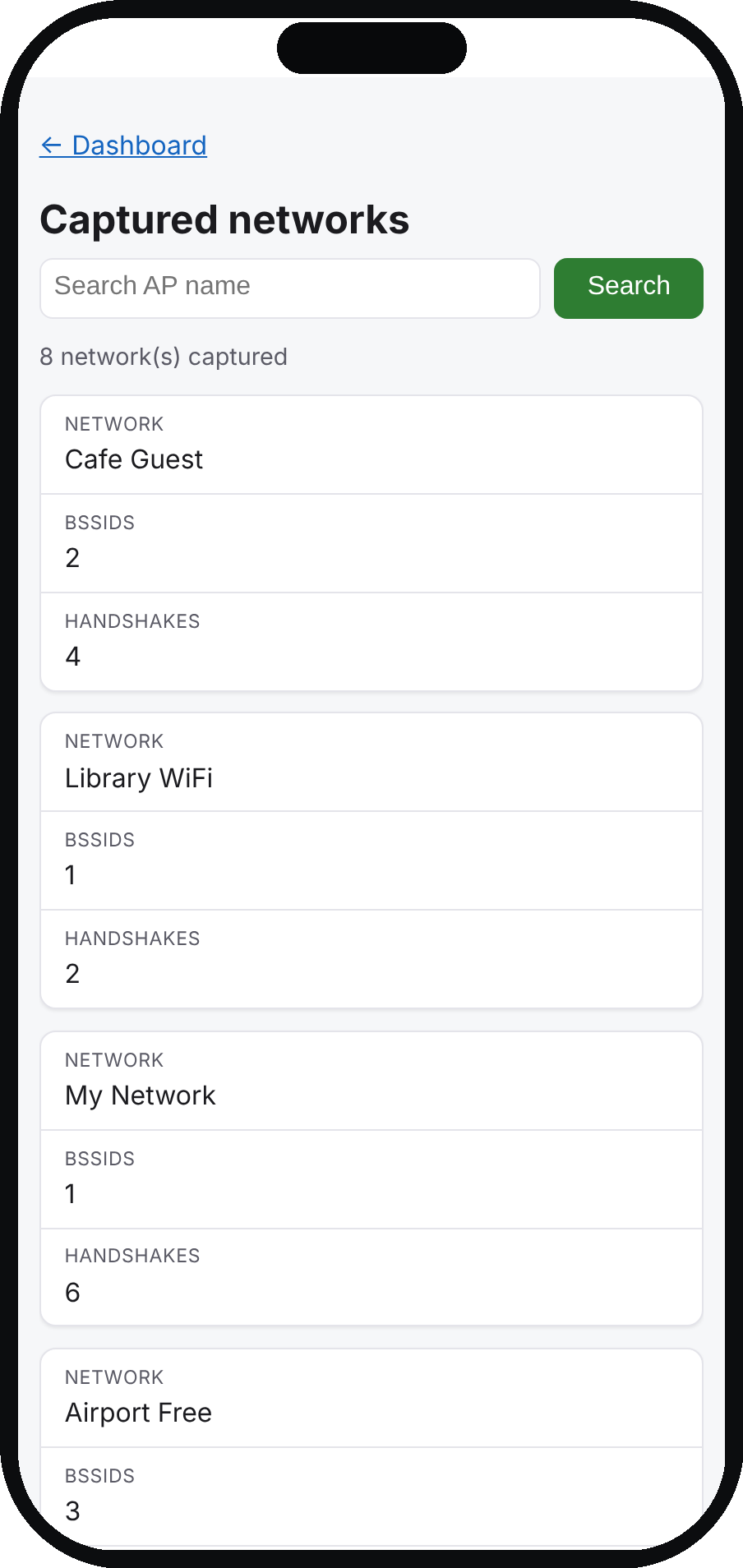
- Captured networks: a searchable, paginated page listing the unique APs you have captured, with BSSID and handshake counts, so it scales to thousands of networks.
- Whitelist: directly below Captured networks, the APs that are never actively attacked. It is searchable, and with a login you can add an AP (an ESSID, or a BSSID like
AA:BB:CC:DD:EE:FF) or remove one straight from the page; a change takes effect the next time capture starts.
The read-only view auto-refreshes every refresh_seconds (default 30; set 0 to disable) and will not reload a form under you.
Controls (login required)
With login on, the dashboard drives the same actions as the terminal through a small privileged helper (the daemon itself runs unprivileged):
- Capture on/off, including the authorized-use acknowledgment (never pre-ticked). It does not restart the daemon.
- Plugins: a page to enable, disable and configure plugins (set their options and secrets), with the authorized-use acknowledgment for network plugins.
- AI Agent: enable/disable, choose the policy and algorithm, turn on-device training On or Off, and Train now, with the agent-vs-sweep comparison.
- Upgrade: apply an available in-place update.
- Reboot and Shut down: each opens a confirmation page first. A shutdown will not come back on its own; a reboot will.
- Pair over Bluetooth: a button that appears only when no phone is paired, to reopen the pairing window without the terminal. It disappears once a phone is paired.
- Advanced settings: a per-key editor for the core
config.tomlsettings, reached by a discreet Advanced settings link at the very bottom of the dashboard. See Advanced settings just below.
The page binds to the management interfaces and loopback only, enforces its login, protects writes with CSRF tokens, sets frame/cache/referrer headers, never echoes a stored secret, and shows status by text rather than colour alone. It is mobile-first and dark-mode aware.
Advanced settings
Most settings have a purpose-built control — capture on/off, the plugin pages, the AI Agent page. The Advanced settings page (the discreet link at the bottom of the dashboard, or /settings directly) is for the rest: the core config.toml keys that otherwise only the CLI reaches, laid out in one page with sections for Capture, the learning agent, and the daemon and web. It needs the dashboard login on, exactly like the other controls; with the login off it is read-only.
Each key is edited on its own, with its current value, a short note of what it does, and the limits the device enforces — the same one-key-at-a-time write the CLI uses, so an edit can never touch more than the one setting you changed. Reset on a key puts it back to the shipped default. A few things are shown but not editable here and say why: a setting a dedicated control owns (with a link to it), a secret (shown only as configured or not set — its value is never displayed or entered here), and the low-level network plumbing in /etc/default/kestrel, which stays a terminal-only task because a wrong value there can drop your management link. Per-plugin options are not on this page; each plugin keeps its own config page, which the Plugins section links to.
Saving a daemon or web key restarts the dashboard to apply it (the page waits and reloads). A capture or agent key is saved immediately but takes effect the next time that service (re)starts, which the page tells you.
Capturing handshakes
Capture is the device's core job: it runs AngryOxide on your external USB Wi-Fi dongle to discover networks and collect WPA2 handshakes and PMKIDs into a local store. It uses only the dongle, so the built-in Wi-Fi and Bluetooth stay free for management and you can stay connected while capturing.
Capture is opt-in and off by default. Nothing captures until you enable it and confirm an explicit authorized-use acknowledgment, which is never pre-ticked.
Only capture networks you are authorized to. The whitelist protects networks that must never be attacked.
Enabling capture
First plug in a monitor-mode-capable USB dongle. Then enable capture either way; both detect the dongle, present the same acknowledgment, and start capturing with no reboot.
From the dashboard (easiest): with the dashboard login on, open the dashboard, flip the Capture control on, and confirm the acknowledgment. The control is read-only if the dashboard login is off.
The same from the terminal:
sudo kestrel capture enable
The non-interactive form for scripts detects and pins the adapter and skips the prompt:
sudo kestrel capture enable --interface auto --yes
--interface auto picks the monitor-capable wlan that is not the built-in chip; pass --interface wlan1 to pin one. Turn capture off with the dashboard control, or from the terminal:
sudo kestrel capture disable
What it does by default
Out of the box capture runs a channel sweep: it rotates through every channel the dongle supports, dwelling a few seconds on each while it discovers APs and captures handshakes, then loops. It runs headless as a service, never auto-exits, and resumes after a reboot, even re-finding the dongle if it comes back with a different interface name.
Tuning capture
Capture tuning has no web form, so it is a terminal/config task. Settings live under the [capture] tables in config.toml. The ones you are most likely to touch:
| Setting | Meaning |
|---|---|
[capture.scan] mode |
sweep (default), autohunt (scan once then lock onto channels with targets, good for a stationary device), or fixed (an explicit channel list). |
[capture.scan] dwell_seconds |
Seconds on each channel (default 5). Lower revisits faster for a moving device; higher gives more time per channel. |
[capture.scan] bands |
auto (all supported), "2" or "5" for one band, or a channel list like "1,6,11,36,149". |
[capture.output] mode |
per-ssid (one file per network, default) or single (one combined file). |
After editing, restart capture:
sudo systemctl restart kestrel-capture.service
Edit one table and key at a time. Several tables share an enabled key, so never do a file-wide find-and-replace.
The capture whitelist
The whitelist is a list of networks capture must never actively attack. Whitelisted networks may still be observed passively (they appear in scans), but the device will never send deauthentication frames at them. AngryOxide enforces the list natively, so entries are genuinely never targeted. Use it to protect your own home or office Wi-Fi, a neighbour's, or anything you are not authorized to attack.
Each entry is either an SSID (network name) or a BSSID (a MAC address). An SSID entry protects every AP broadcasting that name; a BSSID entry protects one specific radio. The easiest ways to edit it:
- From the dashboard (with the login on): the Whitelist page adds or removes an AP straight from the browser.
- The same from the terminal:
sudo kestrel capture whitelist add <AP>,... remove <AP>,... list.
You can also set it directly in config.toml, editing just that one key:
[capture]
whitelist = ["YOUR-WIFI", "AA:BB:CC:DD:EE:FF"]
Restart capture after a change (sudo systemctl restart kestrel-capture.service); it takes effect the next time capture starts. You can also pre-load it before first boot by dropping a kestrel-whitelist.txt file (one SSID or MAC per line) on the boot partition, which the device merges in and then removes.
Where captures go, and housekeeping
The persistent store is /var/lib/kestrel/capture/, with one <ssid>.hc22000 file per network (or one combined file in single mode). It is append-and-dedup, never truncated: reboots and attack restarts add new unique handshakes to the existing files rather than replacing them. AngryOxide's raw working files live in a size-capped scratch .run/ subdirectory (max_run_mb, default 512 MB) so they cannot fill the card; only that scratch is pruned, never your handshakes.
Check status any time:
sudo kestrel capture status
It shows whether capture is enabled and running, the resolved dongle and driver, the store size, oldest and newest capture, and archive count. Housekeeping has no web control, so you manage the store explicitly from the terminal; the store only grows and nothing is ever deleted silently:
sudo kestrel capture archive: move the current store into a timestamped archive set and start fresh. Capture keeps running. Non-destructive, and the default.sudo kestrel capture rotate: archive only if a size or age limit is exceeded (what the optional daily timer runs; ships off).sudo kestrel capture clear --yes: delete the live store (add--purgeto drop archives too). The only action that deletes, and it needs the explicit--yes.
Plugins
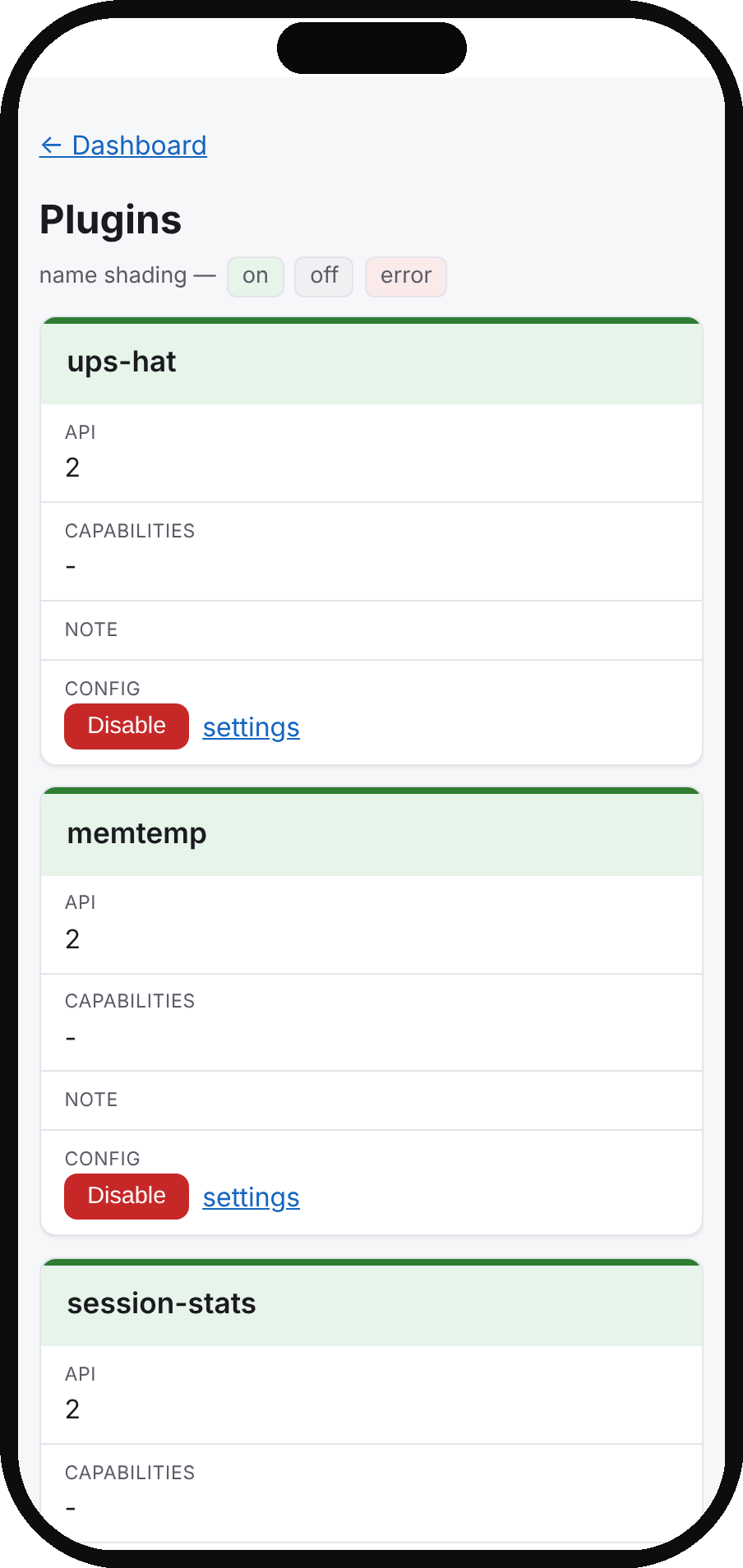
A small daemon (kestrel-daemon) hosts plugins and serves the dashboard. The daemon ships enabled but does nothing on its own until you enable a plugin, and every bundled plugin ships disabled.
From the dashboard (with the dashboard login on): the Plugins page lists every plugin and whether it is enabled, and each plugin has its own config page where you enable, disable and configure it — setting its options and secrets right in the browser. That covers the common day-to-day plugin work.
The same from the terminal. List and inspect:
sudo kestrel plugins list          # every plugin and whether it's enabled
sudo kestrel plugins info gps       # one plugin's options, deps, and health
Enable a plugin, passing any settings with --set key=value (repeatable):
sudo kestrel plugins enable session-stats
sudo kestrel plugins enable gps --set source=serial --set device=/dev/ttyACM0
Run in a terminal, plugins enable also walks you through the options (secrets are masked). To change an option later, re-run plugins enable <name> --set key=value with the new value (or edit it on the plugin's web config page). Enabling does not require a reboot or even a daemon restart for the common cases. Disable with sudo kestrel plugins disable <name>, or the Disable control on the dashboard.
The authorized-use acknowledgment: any plugin that sends data off the device (the network capability: wpa-sec, wigle, backup, remote-train, and updates) takes the same explicit authorized-use acknowledgment as capture before it turns on, whether you enable it from the dashboard or the terminal. In a terminal you are prompted; add --yes for scripts. The acknowledgment is remembered device-wide, so once you have enabled capture it is silent afterward. Local-only plugins (memtemp, session-stats, ups-hat, eink, and gps reading a local receiver) never need it.
Where things live: bundled plugins are in /usr/local/lib/kestrel/plugins/; your own overrides go in /etc/kestrel/plugins/ (a plugin there with the same name takes precedence). Each plugin has a [plugins.<name>] table in config.toml; prefer the dashboard or the CLI over hand-editing. If a plugin shows an error, sudo kestrel plugins info <name> reports its health and sudo journalctl -u kestrel-daemon shows why it failed to load. A failed plugin never stops the daemon or the others.
The reference plugins follow. Every one of them can be enabled and configured from the dashboard Plugins page (with the login on); the commands and option lists below are the terminal equivalent and the complete reference for each plugin's options. updates is covered under Keeping the device updated, and remote-train under The learning capture agent.
memtemp (device health)
A local-only readout card with memory percent (drawn as a bar), 1-minute CPU load, CPU temperature, and fan speed or RPM if a fan is detected (for example the Pi 5 active cooler). Boards with no fan show no fan row.
- Enable:
sudo kestrel plugins enable memtemp - Option
fahrenheit(defaultfalse): show temperature in degrees F,--set fahrenheit=true.
session-stats (per-session counters)
A local-only card counting activity for the current daemon session: handshakes seen, unique APs seen, event-loop epochs elapsed, and uptime. These reset when the daemon restarts; the all-time totals live on the Captured networks page.
- Enable:
sudo kestrel plugins enable session-stats - No options. It also serves a tiny page and JSON feed on the management link at
/plugins/session-stats/.
gps (position source)
The device's single position source: it keeps the current fix, tags captured handshakes with a location sidecar, and shares the fix with other plugins (such as wigle) and the dashboard. A USB GPS receiver works with no gpsd install, because the plugin can read the receiver's serial device directly.
- Enable (the default
source=autopicks up a plugged-in receiver on its own):sudo kestrel plugins enable gps - To pin a device explicitly:
--set source=serial --set device=/dev/ttyUSB0 - Option
source:auto(default; usegpsdif running, else the serial device),serial(serial only), orgpsd(talk only togpsdathost/port). - A USB GPS usually enumerates as
/dev/ttyACM0or/dev/ttyUSB0. Confirm it streams NMEA withcat /dev/ttyACM0(nosudoneeded; expect$GPGGA/$GNGGA/$GPRMClines). baudis ignored for USB CDC-ACM receivers; set it only for a true UART. Reading local hardware,gpsneeds no authorized-use acknowledgment.
The GPS card shows fix status (no fix / 2D fix / 3D fix), satellites in use, the signal strength, and latitude, longitude and altitude. The Signal row is the strongest satellite's carrier-to-noise in dB-Hz, with a plain read beside it — no signal, very weak, weak, moderate, strong signal, or, with a fix, good. Before a fix this tells you whether the receiver simply needs more time (a strong signal, acquiring) or a clearer view of the sky (a weak one), without reading raw NMEA. As a rule of thumb a fix needs a few satellites above ~30 dB-Hz. The reads update live as the signal changes — including if a fix is acquired and then lost, where the lines track the recovery. If the receiver stops sending data entirely (unplugged, powered off, or a stalled USB link), after about half a minute the card reads no signal — receiver not responding instead of holding the last values, so a dead receiver is obvious at a glance. See GPS note in Troubleshooting for cold-start timing.
ups-hat (battery readout and auto-shutdown)
Reads a Waveshare UPS HAT's INA219 fuel gauge over I2C and shows a battery card: charge percent (with a gauge bar), charging or discharging state, voltage, current and power. It can also cleanly shut the device down before the pack runs flat, so the SD card is never cut off mid-write. It reads only the local I2C bus, so it needs no acknowledgment, and it confirms the HAT is present by round-tripping a register before acting (a board without the HAT reads "no UPS HAT detected").
- Monitor only:
sudo kestrel plugins enable ups-hat --set shutdown_percent=0 - With auto-shutdown at 5 percent:
sudo kestrel plugins enable ups-hat --set shutdown_percent=5 shutdown_percent(default5): auto-shutdown at or below this charge while on battery;0disables it.poll_seconds(default20),i2c_bus(default1),address(default0x42).
Auto-shutdown fires only while the plugin is enabled, only while the pack is discharging, and only after the low reading persists for a few polls, then powers off immediately with no prompt (a dying battery cannot wait). The image already enables I2C and puts pi in the i2c group, so a seated HAT works with no extra setup; check it with i2cdetect -y 1 (expect a device at 42).
eink (the animated face)
Draws the classic animated "tamagotchi" face on a Waveshare 2.7" e-Paper HAT, so the device shows what it is doing at a glance with no phone. The face's expression follows real device and learning-agent state through a priority ladder — a fault shows a broken face, a low battery a tired one, a fresh handshake an excited one, and while capturing it reflects the agent's posture (and only shows the "smart" face when a learned policy is actually driving, never the scripted baseline). Around the face: a top icon strip with BT PAN and Wi-Fi link symbols (slashed when a link is down), a GPS satellite with signal bars when a receiver is present (outlined while searching, solid once locked), a motion glyph only while you're moving (a walking person or a moving car — parked shows nothing here, since the Kestrel's hover pose denotes stopped), and a battery symbol with its percent. Beside the face is its voice — a short, cute phrase that matches the mood (and changes when the mood does), overridable under [plugins.eink.voices]. Below the face: a compact one-line status with a chip glyph and the agent mode (off, baseline or learned) and an antenna glyph for capturing/idle; an info row with UP (uptime) and, while capturing, CH (the channel plan being swept — a channel list, a band like 2.4G, sweep or hunt; it is the plan, not a live tuned channel) and NEAR (how many distinct radios are in range recently, with a small density meter — a density reading over a window, shown only while capturing); and a bottom counter row with PWND captured handshakes and AP distinct captured access points, each the lifetime total with this session's count in parentheses, e.g. 200 (30). The Kestrel mark sits once in the lower-right corner, its pose reflecting motion (diving when moving, hovering when parked). Motion (parked/walking/driving) is estimated from your GPS speed across successive fixes, with hysteresis so it doesn't flicker at a stop light. The mood is the face itself. When capture is turned off the device has nothing to hunt, so the face sleeps (a sleeping expression with a "zzz…" voice) rather than looking busy; a fault, low battery, a promotion or a fresh handshake still takes over. On shutdown — the power-off button or the low-battery auto-off — the panel is blanked before the device powers down, so the last face is not left frozen on the e-paper. It reads and drives only local hardware, so it needs no acknowledgment, and it is harmless with no HAT attached: the face still renders to the web mirror below.
- Enable:
sudo kestrel plugins enable eink - View (a button on the Plugins page) opens a live mirror of the exact panel frame, so you can see the face from a phone at any time — it even works with no HAT, showing the frame the device would display. The mirror refreshes in step with the panel and from the same frame, so the two never drift.
- Option
variant(defaultauto): panel driver,auto(probe),v2, orv1— the 2.7" HAT ships in two hardware revisions andautodetects which. - Option
rotation(default0): rotate the image0/90/180/270if the HAT is mounted turned. - Option
refresh_seconds(default30, floored at10): how often the face re-renders; the panel only redraws when the face actually changes, to limit e-ink wear. - Options
show_mascot/show_brand_glyph(defaulttrue): draw the emoticon face / the small corner Kestrel mark. - Option
battery_low_percent(default10): show the tired face at or below this charge while on battery (needsups-hat). - Options
bored_epochs/sad_epochs(defaults15/25): how many idle event-loop epochs before the face looks bored, then sad. - The HAT's four on-board buttons are reserved for now (no action is wired to them).
The face reads the learning agent's state and the battery when those are available (the agent and ups-hat), and degrades cleanly when they are not. The faces themselves are the classic pwnagotchi emoticons and can be overridden per mood in config.toml under [plugins.eink.faces].
wpa-sec (upload and crack results)
Uploads captured handshakes to wpa-sec.stanev.org, a distributed cracking service, and downloads the passwords recovered under your key. Off by default, and a network plugin, so enabling it takes the authorized-use acknowledgment.
- Get your key: sign in at wpa-sec.stanev.org and copy your personal key (a long hex string). It is both your upload credential and the key your results are filed under. Keep it private.
- Enable:
sudo kestrel plugins enable wpa-sec --set api_key='YOUR_WPA_SEC_KEY'(or enter the key on the plugin's web config page). - Options:
endpoint(defaulthttps://wpa-sec.stanev.org),download_results(defaulttrue),results_interval_seconds(default3600),timeout(default30). - It queues new handshakes while offline and uploads on reconnect (repackaging to a
.capfirst). Withdownload_resultson it fetches every network cracked under your key, from any device, to/var/lib/kestrel/capture/cracked/wpa-sec.potfile. Setdownload_results = falseto upload only. - The card shows Uploaded (this session), Queued, and Cracked. "already submitted" in the log is harmless (wpa-sec de-duplicates server-side).
- With the web login on, the plugin's row on the Plugins page has a Show button. It opens a page listing the SSID and recovered passphrase of every cracked network, with a search box (by SSID) and paging, so it stays usable with thousands of results. Because it shows passphrases it is only available, and only rendered, when you are signed in (
[web] authon).
wigle (wardriving uploads)
Submits the networks you observe, with their GPS coordinates, to wigle.net, the crowd-sourced wardriving database. Off by default, a network plugin, and needs GPS to actually upload. WiGLE uploads only ever carry real GPS fixes.
- Credentials: make a free account at wigle.net, then under Account use "Show my token" to find the API Name (looks like
AIDxxxxxxxx...) and the API Token (a long random string). Use those two, not your website login, and ignore the "Encoded for use" blob. Swapping them or pasting the wrong one is the usual cause of an HTTP 401. - Enable:
sudo kestrel plugins enable wigle --set api_name='AIDxxxxxxxx...' --set api_token='your-long-api-token'(or enter the two values on the plugin's web config page). - Options:
geolocate(defaultfalse),geolocate_max_lookups(default5),retry_seconds(default300),timeout(default30),endpoint(defaulthttps://api.wigle.net). - Modes (shown on the card):
gps(GPS present, uploads observations with real coordinates, the normal mode),gps + geolocate(GPS present andgeolocate = true; real fixes upload while fix-less observations are looked up for on-device display only, never uploaded),geolocate(geolocate = trueand no GPS; looks up approximate positions for on-device display only and never uploads them), oridle(no GPS andgeolocate = false; nothing to do). - The card also shows Uploaded, Queued, Networks, and the last Upload outcome. The queue persists across reboots, so nothing is lost on a restart.
backup (mirror the capture store off-device)
Mirrors the on-device capture data to a remote server over SSH, so a lost or reflashed card does not take the data with it. Off by default, a network plugin, so enabling it takes the acknowledgment. It backs up everything under the capture store except the transient .run/ scratch (hashlines, GPS sidecars, the wigle geo-cache, the wpa-sec potfile, archives, and the agent's model and episode logs).
It uses rsync over SSH by default, which is the recommendation (incremental and resumable, cheap over a slow link); tool = "scp" is a plain recursive copy kept only as a fallback. The device copies as the pi account using its SSH key, and no key or password is ever stored. Set it up in order:
- Configure and enable, from the dashboard Plugins page (with the login on) or from the terminal:
sudo kestrel plugins enable backup --set host=backup.example.com --set user=you --set path=/remote/path - Install the device key on the remote. This is a terminal-only step, because it prompts for the remote password once (which the web cannot do) and stores nothing:
sudo kestrel backup setup - Run a first backup now, or just wait for the schedule. Backups run automatically on their interval; to run one by hand, click the Backup button on the backup plugin's row of the dashboard Plugins page (with the login on), or from the terminal:
sudo kestrel backup now. Either way the backup card updates with the result.
- Options:
port(default 22),tool(rsync/scp),interval_seconds(default 3600),timeout(default 1800),ssh_key(default/home/pi/.ssh/id_ed25519),agent_dir(default/var/lib/kestrel/agent; empty to skip the agent data). pathas a bare name is relative to the remote account's home; a leading slash is an absolute path, which only works whereusercan write.- Check it with
sudo kestrel backup status(target and whether passwordless SSH works). The dashboard shows a backup card with time since last backup, status, files and bytes moved, and the target. - Common mistakes: running
backup nowbeforebackup setup(fails with "Permission denied (publickey)"); an absolutepaththe account cannot write to (rsync code 11); a remote without rsync; the wronguser/hostor a non-standard port.
To restore onto a fresh image, point the plugin at the same remote and run backup setup once (both as above), then restore. From the dashboard: click the Restore button on the backup plugin's row (with the login on). The same from the terminal: sudo kestrel backup restore. It pulls the capture store and the agent's model and episode logs back and fixes ownership. It restores data, not settings: config and keys are deliberately excluded, so re-enable capture, the plugins and the agent and re-enter any keys afterward. The remote backup is not encrypted at rest, so keep the remote as access-controlled as the device.
The learning capture agent
Instead of sweeping channels on a fixed schedule, the optional learning agent picks a scan posture for each short window and lets the capture launcher realize it. Every choice still maps to an AngryOxide launch flag, so the agent never does anything the sweep could not; it just decides when, based on what it is seeing. It optimizes for one number: new unique handshakes per hour.
The agent ships off. With it off, capture runs exactly the scripted channel sweep. Turning it on is opt-in and takes the same authorized-use acknowledgment as capture. The agent does nothing at all unless both capture and the agent are enabled, it never starts or stops AngryOxide or edits config.toml itself, and it never attacks whitelisted networks.
For the detail — what each algorithm is good at, how training actually works, and how you can switch models without any code change — see Learning algorithms, in depth at the end of this guide. It is optional reading, not needed to run the device.
Turning it on
From the dashboard (with the dashboard login on): open the AI Agent page and enable the agent (capture must already be on). The page also shows the live posture and rates and the agent-vs-sweep comparison.
The same from the terminal:
sudo kestrel capture enable      # if capture isn't on yet
sudo kestrel agent enable        # takes the acknowledgment the first time
By default it runs the baseline policy (the scripted sweep expressed in the agent's own vocabulary), so capture behaves exactly as before, but every window is now logged for comparison and training. The agent earns the switch to a learned policy by the numbers. Check and disable from the dashboard's AI Agent page, or from the terminal:
kestrel agent status      # state, policy, algorithm, current posture
kestrel agent metrics     # the agent-vs-sweep comparison table
sudo kestrel agent disable
The dashboard's AI Agent page (with web auth on) drives enable/disable, a policy choice, an algorithm picker, a Train now button, and the live posture and rates, and shows the agent-vs-sweep comparison. The full agent metrics comparison table is the terminal view.
If the gps plugin is on and has a fix, the agent also uses your motion (moving vs parked, turning vs holding) and a coarse open-sky vs enclosed signal from the fix quality, so it can scan differently on the move than parked indoors. It is optional and read on-device only — with no receiver or lock the agent just runs without it. Set [agent] use_gps = false (or on the Advanced settings page) to keep GPS out of the agent. Note: a learned model from an older image is tied to the pre-GPS observation, so after an update each device safely falls back to the scripted baseline until it retrains or imports a new model.
Algorithm and policy
Both of these are drivable from the dashboard's AI Agent page (with the login on): a policy choice and an algorithm picker. Under the hood they are two config keys under [agent]:
algorithm: which RL algorithm a learned model uses:RecurrentPPO(default),PPO,DQN, orQR-DQN. The device keeps a separate model file per algorithm, so switching algorithm and back reloads that algorithm's saved model.policy: what actually drives capture:baseline(the sweep) orlearned(a trained model).learnedwith no valid model safely falls back tobaseline.
The same from the terminal:
sudo kestrel agent set --algorithm DQN
sudo kestrel agent set --policy learned
Switching to an algorithm that has no model yet starts a background training run to build one (the web page asks you to confirm first; the CLI prints a one-line warning and running the command is the acceptance). Switching to one that already has a model just loads it.
Reading the comparison
Because the device has one radio and the RF world drifts, the only honest A/B test is to interleave the two policies within one session and compare window-for-window. Turn interleaving on in config.toml:
[agent]
interleave_compare = true
compare_block_minutes = 10
The dashboard's AI Agent page shows the comparison. For the full table — handshakes/hour, new networks/hour, window hit-rate and handshakes-per-AP-window for each policy — use the terminal: kestrel agent metrics. If learned beats baseline, keep it; if not, you have lost nothing, since the baseline sweep is always the floor.
Training
The agent learns from episode logs (one JSONL row per decision window under /var/lib/kestrel/agent/). Training replays those logs; it is a short fine-tune, and the result is only used if policy = learned.
- On-device training is gated by RAM. A board below roughly 4 GB (for example a Pi Zero 2 W) never trains on-device, no matter what; inference still runs fine. Train such a board's model on a desktop instead and fly it over.
- The
trainkey isauto(default; on for a 4 GB-plus board, off below),idle, oroff. On a capable board, periodic fine-tunes run on their own once enough new windows accrue. - From the dashboard: the Train now button on the AI Agent page (with the login on) forces a run on demand. The same from the terminal:
kestrel agent train-now. Either way it respects the board gate and safety clamps and names whatever is blocking it (no data, a run in progress, too hot, or low memory). - Safety clamps
train_max_temp_c(default 75, hard-capped at 85) andtrain_min_free_mb(default 512, hard floor 256) keep a run from cooking or starving the board.
A synchronous training run and installing a trained model are terminal-only (the web has no form for either). To train synchronously, or to move a trained model onto a device: sudo kestrel agent train [--algorithm A] [--timesteps N], and sudo kestrel agent import ./model.zip --algorithm RecurrentPPO — or drop kestrel-model.zip (plus its .meta.json sidecar) on the boot partition, or let the backup plugin carry it. A model is portable across boards; one trained under a mismatched spec version is ignored in favour of the sweep rather than loaded wrong.
remote-train (offload training to a desktop)
The remote-train plugin automates the whole desktop-training loop: it pushes the episode logs to a desktop Linux host, runs the same trainer there in an isolated venv it owns, and pulls the finished model back, adopting it only when it is genuinely fresher. It ships disabled and, as a network plugin, takes the authorized-use acknowledgment. The training host is independent of the backup host.
Prepare the training host first. The host is any Linux machine with Python 3 and SSH that you leave on while training. The plugin builds its own virtualenv there and pip-installs the ML stack into it (it never touches the system Python), so the host needs the venv and pip modules, rsync, and an SSH server. On Debian/Ubuntu:
sudo apt update
sudo apt install -y python3-venv python3-pip rsync openssh-server
On Fedora/RHEL: sudo dnf install -y python3 python3-pip rsync openssh-server (venv ships with python3 there). python3-venv is the one most often missing on Debian/Ubuntu, and without it the host cannot build the venv, so the ML stack never installs and training never starts. Leave a few GB of free disk for PyTorch. You do not need to copy the repo or install anything Kestrel-specific by hand — remote-train setup and the plugin do the rest. If the host stack will not come up, kestrel remote-train status shows host stack: FAILED - <reason> and the dashboard card's Host stack reads failed; see Remote training host stack won't become ready.
Enable and configure it from the dashboard Plugins page (with the login on), or from the terminal:
sudo kestrel plugins enable remote-train \
  --set train_host=desktop.lan --set train_user=you --set train_path=/remote/path \
  --set algorithms=RecurrentPPO,DQN
sudo kestrel remote-train setup     # installs the device key on the host (password once), preps the venv
The remote-train setup step is terminal-only, because it prompts for the host password once (which the web cannot do).
algorithms(comma-separated, case-sensitive: any of RecurrentPPO, PPO, DQN, QR-DQN) selects which per-algorithm models to keep trained remotely. Defaults to all four.- After setup the plugin runs on its own, launching a run for an algorithm once enough new episodes accrue (
remote_train_min_new_episodes, default 300). There is no fixed timer. - A finished model is pulled back and staged automatically; the agent then scores it against the on-device model on a held-out slice of your own data and only promotes it if it is genuinely better (and still beats the scripted baseline), so a remote model can never clobber a better local one whichever trained on newer data.
- Other keys:
stale_lock_hours(default 6),timesteps(default 200000),interval_seconds(default 3600),timeout(default 1800),train_port,ssh_key. - To kick off a run on demand, use the Train button on the remote-train plugin's row in the dashboard (with the login on), or
kestrel remote-train nowfrom the terminal. Either one forces a run immediately even when fewer thanremote_train_min_new_episodeshave accrued (the on-demand request overrides the data threshold), as long as there are some episodes to train on. If it cannot start, the plugin's card says why — no capture episodes recorded yet, the device is offline, the host is not set up, or a run is already in progress — instead of looking like nothing happened.kestrel remote-train statusshows the host and its job markers. Uninstall withplugins disable remote-train(on the dashboard or the terminal) and deletetrain_pathon the host.
Keeping the device updated
The updates plugin tells you when a newer release is out and lets you apply an app-layer update in place, without reflashing the SD card. It ships off and never updates anything on its own: a new release only ever produces an alert, and applying it is a deliberate, confirmed action.
Before updating over Bluetooth PAN, set up a Wi-Fi fallback. The update itself is safe if the link drops — it cancels and leaves you on the current version — but a Bluetooth PAN link can fail to re-establish afterwards, and if BT PAN is your only connection the device then becomes unreachable (the daemon and SSH are both fine; there is simply no network path to them). A Wi-Fi station profile as a second management link avoids this. If you do get locked out, you can recover without reflashing — see If you get locked out after an update.
A release is a whole SD-card image, but most of what changes between releases is the application layer (the device's own package, the plugins, helper scripts and systemd units). That layer can be replaced on a running device. So updates split in two:
- App-layer update: the release only changed application files. These apply in place; this is what the Upgrade button does.
- Needs reflash: the release also changed the base OS (new system packages, a kernel bump, boot-config changes), which cannot be done safely in place. The plugin withholds the upgrade button and tells you to reflash.
Which one a release is comes from its update manifest; a release with no manifest is treated as needs-reflash, and the plugin never guesses.
Turn it on
Enable updates from the dashboard Plugins page (with the dashboard login on), or from the terminal:
sudo kestrel plugins enable updates
Checking for releases is a network action, so enabling updates takes the authorized-use acknowledgment (silent if you have already enabled capture). Nothing is transmitted off the device; it only makes a read-only release check. While enabled it checks at most every check_interval_seconds (default 6h) when online, and the result shows as an Updates card:
| Status | Meaning |
|---|---|
up to date |
The latest release is not newer than this image. |
update available |
A newer app-layer release exists; the upgrade button is offered. |
update available — needs reflash |
A newer release exists but changed the base OS; reflash instead. |
dev build (not checked) |
This image has no release version stamped. |
Check now (don't wait for the timer)
The check is throttled to check_interval_seconds (6h by default), so a token you just set or a release you just published may not be noticed right away. To force one now, use the Check button on the updates plugin's row of the dashboard Plugins page (with the login on). The same from the terminal: kestrel update check. Either way the running plugin re-checks within a minute (while online); the result then shows on the Updates card and in kestrel update status. It only checks — it never installs anything.
Seeing what's new first
When an update is available the Updates card also shows a discreet What's new in X? link. It opens a read-only page with the merged release notes for every release between your installed version and the latest one, newest first, so you can see what the upgrade changes before you take it. The notes are captured when the plugin checks, so the page works even if the link is flaky; if none were captured it links out to the release on GitHub instead.
Upgrading in place
From the dashboard (with [web] auth on): the Updates card shows an Upgrade button when an app-layer update is available. Tapping it opens a confirmation page that spells out every step first — it pauses capture, the learning agent and the daemon, backs up first if the backup plugin is set up, and briefly drops the dashboard — then runs in the background as root. In order it: fetches the release at its exact commit and verifies it (retried over a flaky link); pauses the capture service, the learning agent (training stops on a checkpoint) and the plugin daemon, remembering which were running; if the backup plugin is set up, mirrors the latest capture data and the agent model to your remote first and cancels the update if that backup fails; backs up the current application files, lays the new ones down and reinstalls the device package offline; validates the new code imports before committing; then restarts whatever was running. The same from the terminal, which prints the same summary and asks to confirm:
kestrel update status     # show what the last check found
sudo kestrel update apply # fetch and apply the latest app-layer release
Your config.toml is not overwritten. New keys fall back to their built-in defaults, and your settings, enabled plugins, captured data and trained model are left untouched. Only the fetch and the optional backup use the network, both before any installed file is touched and both retried, so a dropped connection cancels the update cleanly — the device stays on the current version, running — and never leaves it half-upgraded. If a later step fails, the files are restored from the backup and the update is abandoned. The update never touches the base OS, so the system stays bootable regardless.
Updating from a private repo
The default repo is public, so the plugin reads its releases with no credentials. If you run kestrel from a private repo or fork, the plugin has to authenticate, so it needs a GitHub personal-access token. The token authenticates all three steps that touch the repo: the release check, the manifest download, and the clone the update performs.
The token is yours and lives only on the device, in config.toml (root-owned, device-only), masked everywhere and never shown back. It is never committed and never baked into the image. Scope it as narrowly as possible: a fine-grained token with Contents: Read-only on just your repo, or a classic token with the repo scope.
Set the repo and token from the updates plugin's web config page (with the login on), where you can type the token in directly; or from the terminal:
# set the token (and the repo if your fork's owner/name differs):
sudo kestrel plugins enable updates --set repo=you/your-repo --set token=ghp_xxx
# go back to a public repo:
sudo kestrel plugins enable updates --set token=
Keys under [plugins.updates]: enabled (default false), repo (the project's public repo by default; override for a fork), token (default empty; masked secret), check_interval_seconds (default 21600), timeout (default 30). A wrong or expired token shows as a GitHub 401/403 in the daemon log.
If you get locked out after an update
If an update (or any Bluetooth PAN drop) leaves the device unreachable and you have no Wi-Fi fallback configured, you can get back in without reflashing by staging a Wi-Fi network on the boot partition.
Power the device off and put its SD card in a computer — the card's small FAT boot partition is readable on Windows, macOS and Linux. In the root of that boot partition create a file named kestrel-wifi.txt with one key=value per line:
ssid=Your Network
psk=your passphrase
Leave psk out for an open network; country=GB and band=5 are optional. Put the card back and power on: the device joins that Wi-Fi network and the dashboard and SSH become reachable over it. The file is deleted once read, so your passphrase is not left on the card.
This is the same mechanism as the first-boot Wi-Fi staging, and it works at any time. Keeping a Wi-Fi profile configured as a standing fallback means a Bluetooth hiccup can never lock you out in the first place.
Update limitations
- App-layer only. A release that changed the base OS (system packages, kernel, boot config, partitioning) is flagged needs-reflash and the Upgrade button is withheld — reflash the card for those.
- A changed shipped config default does not reach an updated device. The update skips your
config.toml, so set the new default yourself or reflash (a brand-new key still falls back to its code default). A release that only changes a shipped default is marked reflash. - The dashboard and daemon-hosted monitoring pause during the update — including the UPS-HAT low-battery auto-shutdown — for the minute or two it runs, so update on external power or with adequate battery.
- No auto-update. A new release only raises an alert; applying it is always a deliberate, confirmed action.
- The pre-update backup needs the backup plugin set up. Without it, no snapshot is taken (an app-layer update does not touch your captured data or model anyway).
- Dev builds are never offered updates, and the check needs GitHub reachable over a management link. A local build with no
MY_VERSIONis stampedmaster, which reads as a dev build. - Updating over a single link is risky. If your only connection is Bluetooth PAN and it fails to re-establish after the update, the device is unreachable until the link returns; set up a Wi-Fi fallback first, and see If you get locked out after an update.
Command reference
kestrel is the single command-line tool for configuring the device, and the full-power equivalent of the dashboard: the dashboard covers most of these, and this table is the complete CLI reference, including the handful of actions (Wi-Fi, web-auth mode, the SSH-key setup steps, capture tuning and housekeeping, synchronous training and model import) that have no web form. Run it with no arguments to see the menu on the device. Most commands change system state and need sudo.
Setup, network and web
| Command | What it does |
|---|---|
kestrel setup |
Guided first-time setup (network, then capture). |
kestrel network status |
Show Bluetooth PAN and Wi-Fi state and IPs. |
kestrel network wifi --ssid NAME [--psk PASS] [--hidden] [--country GB] [--band 2.4\|5\|any] |
Save Wi-Fi station credentials. |
kestrel network bt-pair |
Forget the paired phone and reopen Bluetooth onboarding. |
kestrel web status |
Show the web address and whether controls are on. |
kestrel web auth system\|basic\|token\|none |
Set the dashboard login mode. |
Capture
| Command | What it does |
|---|---|
kestrel capture status |
Show capture state, adapter, and store size/counts. |
kestrel capture enable [--interface auto\|wlanX] [--yes] |
Enable capture (asks the authorized-use acknowledgment). |
kestrel capture disable |
Disable capture. |
kestrel capture whitelist add\|remove\|list <AP> |
Manage the whitelist. |
kestrel capture archive |
Archive the store and start fresh. |
kestrel capture rotate |
Apply the housekeeping policy now. |
kestrel capture clear --yes [--purge] |
Delete the live store (and archives with --purge). |
Plugins
| Command | What it does |
|---|---|
kestrel plugins list |
List plugins and whether each is enabled. |
kestrel plugins info NAME |
Show a plugin's options, deps, and health. |
kestrel plugins enable NAME [--yes] [--set k=v ...] |
Enable a plugin (asks the acknowledgment for network plugins; --set sets options). |
kestrel plugins disable NAME |
Disable a plugin. |
Backup, agent and updates
| Command | What it does |
|---|---|
kestrel backup status |
Show the remote target and whether passwordless SSH works. |
kestrel backup setup |
Install the device's SSH key on the remote (password once, stores nothing). |
kestrel backup now |
Run a one-off backup now. |
kestrel backup restore [--yes] |
Pull the capture store and agent data back from the remote. |
kestrel agent status |
Show agent state, policy, algorithm and current posture. |
kestrel agent enable\|disable |
Turn the agent on (needs capture on) or off. |
kestrel agent set [--algorithm A] [--policy P] |
Change the algorithm and/or policy. |
kestrel agent import FILE --algorithm A |
Install a trained model (kept per-algorithm). |
kestrel agent train [--algorithm A] [--timesteps N] |
Train synchronously from the logged episodes. |
kestrel agent train-now |
Ask the running agent to fine-tune in the background. |
kestrel agent metrics |
Show the agent-vs-sweep comparison. |
kestrel remote-train setup\|now\|status |
Set up and drive remote training on a desktop host. |
kestrel update status |
Show what the last update check found. |
kestrel update check |
Re-check for a new release now, ignoring the interval. |
kestrel update apply |
Fetch and apply the latest app-layer release. |
Troubleshooting
Wi-Fi will not connect
Check the passphrase, and try --band 2.4 if you set a 5 GHz-only band on a 2.4 GHz board (the Pi Zero 2 W). Confirm state with sudo kestrel network status or nmcli device status, and find the device in your router's client list if .local names do not resolve.
Bluetooth link is up but the dashboard says "offline"
The link works but name lookups fail, usually because the phone advertises only a link-local IPv6 DNS server. The device applies a routable fallback DNS to the PAN link by default; see Getting online. Confirm with nmcli networking connectivity on the device.
GPS shows no fix
A GPS cold start needs about 12 minutes of continuous, clear-sky reception before the receiver locks, and only then do satellites and the fix progress past no fix / 0. Re-running diagnostics or rebooting restarts that clock, so let it run undisturbed with a good view of the sky. A dead backup battery or supercapacitor on the receiver makes every power-on a full cold start (the receiver cannot remember the almanac), so a receiver that used to fix quickly and now never does may simply need its backup cell replaced. Other checks:
sourceisgpsdbutgpsdis not running: switch toautoorserial, or installgpsd.- No serial device node: the receiver is not plugged in or not enumerating (
ls -l /dev/ttyACM* /dev/ttyUSB*). - Data streams but quality stays
0/V: no lock yet; give it sky view and time. Indoors it may never lock even though data flows. - Use the card's Signal row to tell the two apart: a
strong signal/moderateread that still showsno fixjust needs more time, so keep it still under open sky; aweakorvery weakread means the receiver cannot hear enough satellites and needs a clearer view of the sky (or a better antenna position), not more time. A fix needs a few satellites above ~30 dB-Hz. - Permission denied: the account must be in the
dialoutgroup (the image addspialready; rungroupsto confirm).
The web page shows capture off, or a control is read-only
Capture is read live from the service, so the card reflects the real state: if it reads off, enable it (and confirm the acknowledgment). Controls (capture, plugins, the agent, updates, power) are read-only unless [web] auth is on; set a login mode with sudo kestrel web auth system. A capture toggle does not restart the daemon.
wigle shows HTTP 401
Credentials, the number-one WiGLE issue. Re-check the API Name versus the API Token (not your website login, not the "Encoded for use" string). After you re-save them the card flips to ok within seconds. waiting (offline) instead is a connectivity problem, not a WiGLE one; idle means no GPS fixes are reaching the plugin, so enable and confirm gps.
Backup fails
Read the specific failing line on the backup card or from sudo kestrel backup status. The usual causes: running backup now before backup setup ("Permission denied (publickey)"); an absolute path the account cannot write to (rsync code 11); a remote without rsync; or the wrong user/host or port. Confirm user@host works in a normal SSH session first.
The agent is set to "learned" but runs "baseline"
That is the safe fallback, and kestrel agent status says why. Usually there is no model for the current algorithm yet (train or import one, or wait for an auto-train run), the model was trained under a different algorithm or an older spec version, or the model file is unreadable. Once a valid model is present it is adopted within about one decision window. If the agent does nothing at all, remember it runs only when both capture and the agent are enabled.
Remote training host stack won't become ready
kestrel remote-train status ends with a host stack: line, and the dashboard card has a Host stack readout. ready means the ML venv is built and training can run; installing means it is still building (first time pulls PyTorch, so give it several minutes); failed is the one to act on. A failed stack shows the reason inline (host stack: FAILED - <reason>). The most common reason is that the host is missing python3-venv, so the plugin cannot build its virtualenv — install the host packages from Prepare the training host first:
sudo apt install -y python3-venv python3-pip rsync openssh-server
For the full reason, SSH to the host and read the prep log in the training directory you configured (default kestrel-ai under the account's home):
tail -n 40 ~/kestrel-ai/jobs/prep.log
After fixing the host, the plugin retries on its own at the next cycle; to prod it at once, sudo kestrel remote-train now. passwordless SSH: fails on the status output is a different problem — redo sudo kestrel remote-train setup so the key is installed.
A plugin shows an error
sudo kestrel plugins info <name> reports its health, and sudo journalctl -u kestrel-daemon shows why it failed to load (a bad option, a missing dependency). A failed plugin never stops the daemon or the others. For capture itself, sudo journalctl -u kestrel-capture has the detail.
Learning algorithms, in depth
This section is for the curious. You do not need any of it to run the device: the defaults are good, and the agent card and kestrel agent status already tell you what is running. But if you want to understand why there is a choice of algorithm, what each one trades off, how a model is actually trained, and how you can switch between them without touching code, read on.
What the agent is actually deciding
Every decision window the agent picks one action out of a small, fixed menu. An action is not a single channel; it is a scan posture crossed with a dwell and a transmit flag:
- posture —
sweep-band(cycle the whole band),lock-subset(stay on the few channels that have been paying off),pin-channel(camp on one channel), orautohunt(let AngryOxide chase what it sees). - dwell — how long to sit before the next decision: 2, 5, 10 or 20 seconds.
- transmit —
active(allowed to send, e.g. deauth to speed a handshake) orpassive(listen only).
That is 4 × 4 × 2 = 32 possible actions. To choose, the agent watches a compact, fixed picture of its environment each window. The signals it sees fall into a few groups, each there for a reason:
- How each channel is paying off — for every channel, how many access points and clients it has seen there lately, how many new handshakes that channel produced last window, and the signal's strength and how much it varies. This is what lets the agent favour channels that are actually productive and skip dead ones, and tell a channel with a couple of strong, steady networks from a noisy one.
- How recently each channel was scanned — how long since it last visited each channel. Paired with the churn signal below, this is what lets the agent tell moving from parked: on the move a channel goes stale fast and is worth revisiting, while parked, a channel that was empty tends to stay empty.
- Whether you are moving — how fast the set of visible networks is turning over (new versus familiar) and how fast their signal strengths are drifting. Both climb when the device is in motion, so the agent can scan more aggressively while walking or driving and settle down when parked — even with no GPS.
- Practical limits — how far into the session it is, how full the capture storage is getting, and how much of what is in range is on your whitelist (and so off-limits). These keep its choices realistic: there is no point hammering a band that is almost all whitelisted.
- GPS, when there is a fix — if the
gpsplugin is on and locked, two more groups: your motion (ground speed and how sharply you are turning, worked out on-device from successive fixes) and a rough open-sky versus enclosed read from the fix quality (satellites used, accuracy, and satellite signal strength). Motion is a direct, reliable version of what the churn and drift signals only hint at, and the open-sky read helps even when parked — a basement with a handful of networks calls for a different scan than a rooftop. It is entirely optional: with no receiver or lock the whole GPS block simply reads as absent and the agent ignores it (see the GPS note earlier for the[agent] use_gpsswitch).
From that picture it chooses one of the 32 actions. The reward it is trying to maximise is deliberately simple and honest: new unique handshakes captured, minus a small penalty for time spent and for sitting idle when there genuinely was nothing in range to hear. It is not rewarded for being busy, only for results.
Everything below — the algorithms, the training, the model-swapping — is machinery for getting better at that one choice. The menu of actions and the shape of what it observes never change between algorithms, and that fixed shape is exactly what lets you swap models freely.
The baseline, and why it is always there
Before any learning, there is the baseline policy. It simply emits your configured sweep every window — the same scripted channel sweep capture would do on its own. It needs no model, never fails, and is deterministic. It is both the safe fallback (if a learned model is missing, mismatched or unreadable, the agent quietly runs the baseline and says so) and the yardstick: a learned model has to beat the baseline on held-out data before it is allowed to take over. If you ever see the card say learned but the posture never varies, that is the fallback doing its job — kestrel agent status will tell you why.
The four algorithms
All four are standard, well-tested reinforcement-learning algorithms from the Stable-Baselines3 family. They differ in how they learn and what they are good at:
- RecurrentPPO (the default) — PPO with an LSTM memory. The memory is the point: it carries context from one window to the next, so it can tell moving from parked and sequence postures accordingly (sweep while you are walking, settle once you stop). It is the most capable here and the best fit for a device that moves, but also the heaviest to train and run.
- PPO — plain on-policy PPO, no memory. Stable and forgiving to tune, and lighter than the recurrent version, but each decision is made only from the current snapshot, so it cannot reason about how the scene is changing over time. A sensible choice for a mostly stationary device.
- DQN — off-policy value learning with a replay buffer. It reuses past experience, so it tends to be the most sample-efficient — it can learn useful behaviour from comparatively little captured data, which matters when episodes are scarce. Memoryless like PPO, and happiest when the environment is fairly stable.
- QR-DQN — distributional DQN: instead of estimating one average return per action it estimates the spread of returns. That makes it more robust when the reward is noisy and spiky, which capture yield very much is (long dry spells, then a burst). A good pick if plain DQN feels erratic.
There is no universally best choice — that is the whole reason it is configurable. RecurrentPPO is the default because mobility awareness is the single biggest lever for a device that is carried around. Set the algorithm with:
sudo kestrel agent algorithm <name>
using one of RecurrentPPO, PPO, DQN, QR-DQN, or pick it from the dropdown on the web dashboard.
How training actually works
Training is offline and happens on the device in the background (or on a desktop — see the remote-train plugin). The agent never learns "live" in a way that could make it behave unpredictably mid-capture. Instead:
- It logs episodes. As the agent runs, every decision and its outcome is appended to episode logs — plain JSONL in the agent directory. This is just a record of what happened; it changes nothing on its own.
- A run is triggered by data, not by the clock. When enough new episodes have accumulated since the last training run (
train_min_new_episodes, 60 by default), a training run becomes eligible. This is why training can feel frequent when you are out capturing a lot and silent when the device is idle: it follows the data, not a timer. - Gates protect the device. A run only starts if the board is capable enough (there is a minimum free-space bar so small cards are never pushed into training) and the moment is safe — enough free RAM and the CPU not too hot. If a gate is not met, the run waits; it never fights capture for the radio or cooks the board.
- It fine-tunes from the logs. The run reads the accumulated episodes and fine-tunes the current model for a bounded number of timesteps (
train_timesteps, 3000 by default), then saves atomically so a half-written model can never be loaded. - A new model must earn promotion. Alongside the policy, training fits a small reward model that predicts yield from the observed state, and validates candidates against a held-out slice of the data. A freshly trained model is only promoted to "in use" if it actually beats the incumbent (and the baseline) on data it was not trained on. A model that does not clear that bar is discarded. This is what stops a run of bad luck or a few weird episodes from making the agent worse.
The card's Last trained / Last train time lines are reporting exactly this loop. And because each model records how it was made, the card's Model source line tells you whether the model currently in use was trained here on the device (On-device) or produced on a desktop and imported (Remote host) — see the remote-train plugin for the latter.
How models swap without changing code
This is the part people ask about most: how can the device offer four very different algorithms, and let you switch between them or import a model trained elsewhere, without a firmware change or a code update?
The trick is a strict, versioned contract between the agent and the model — a "two-way door" that any conforming model can walk through in either direction:
- One fixed action space and one fixed observation shape. Because the action is a plain 32-way choice and the observation is a fixed-size vector (the same features, the same channel ceiling) regardless of algorithm, every one of the four algorithms instantiates against the identical environment. Nothing about the environment has to be rebuilt to host a different algorithm.
- A registry, not hard-coded types. The algorithms live in a small lookup table (name → library, class, policy kind). Selecting an algorithm is selecting a key in that table. Adding or changing one is a data edit, not a rewrite of the agent.
- The choice is validated before anything heavy loads. The
[agent] algorithmsetting is checked against that registry — by the web dropdown, by the root apply helper, and by the loader — before any machine-learning code is imported. An unknown name is refused up front with a clear message; it can never cause a crash deep inside a library. - Per-algorithm model files with a sidecar. Each algorithm keeps its own model file, and every model carries a small sidecar recording the algorithm it was trained as and the spec version of the contract it was built against. On load, the agent checks both: if the model's algorithm does not match the one you selected, or its spec version does not match this build's, the model is rejected and the agent falls back to the baseline — again, saying why — rather than loading something that does not fit the contract. Switching algorithms therefore just loads that algorithm's model if one exists, or runs the baseline (and schedules a train) if not.
- The spec version is the escape hatch. The one thing that can break compatibility is a change to the action menu or the observation features themselves. That is exactly what the spec version guards: bump it, and every old model is cleanly retired as mismatched instead of silently misinterpreted. So even a future change to what the agent perceives or decides degrades safely to the baseline, never to wrong behaviour.
Put together, that is why you can flip between RecurrentPPO, PPO, DQN and QR-DQN, or import a model a desktop trained, and the worst case is always "runs the safe baseline and tells you why" — never a broken agent and never a code update to make it fit.